This tab allows users to divide teeth and gingival.
Major function: Mx / Md Segmentation. User may use other functions if needed.
Segmentation - AI
Al-based tooth segmentation function.
동영상 재생
1. Contour
: Allow users to check the segmented teeth.
Adjust contour : Adjust the tooth area with control points.
Add tooth : Add button.
Delete tooth : Select a tooth to delete.
Re-contour : Select a tooth to redraw the tooth area.
Join : If the contour distance is within the join value, teeth will be contoured as a contacted tooth.
2. Axis
: This step allows users to check and correct the tooth axis.
Adjust the Red/Green/Blue arrows and sphere arrow to control the axis.
동영상 재생
※Notes
If the “Hole” message is displayed during the segmentation, it means that there are defects on the scan model. Please send the 3D file to dentone customer support center, We will deliver repaired model shortly. You may restart with repaired files.
동영상 재생
3. Segment
: Allow users to final check the segmented teeth.
If tooth margin is wrong, user may go back to Contour and adjust the area.
If the tooth margin is wrong, user may go back to Axis and adjust the root direction.
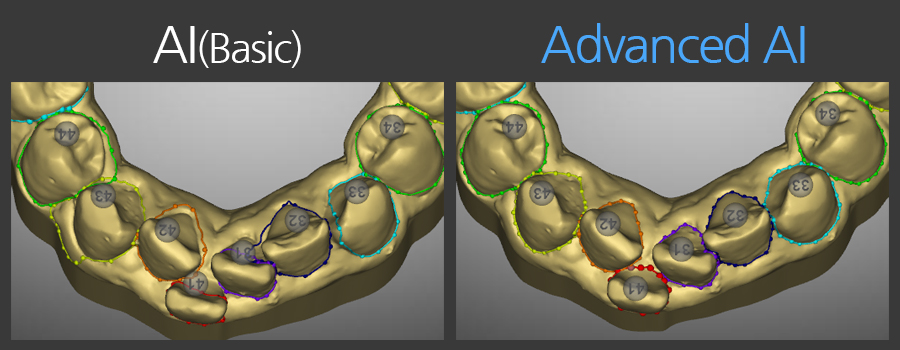
Segmentation - AI Advanced
This feature automatically segments teeth using the improved 3D AI algorithm.
The tooth–gingiva boundary detection performance has been significantly improved compared to the existing AI Segmentation.
Contours are generated more reliably, even in cases with Black Triangles.
To achieve more precise tooth segmentation, processing may take approximately 3–4 seconds longer than the existing AI Segmentation.
Segmentation - Manual
Manual tooth segmentation function.
동영상 재생
1. Set M/D
: User is required to select 2 points (Mesial / Distal) on tooth each for segmentation.
From the left side, proceed in clock-wise direction Distal -> Mesial until the midline, then Mesial -> Distal.
Undo a point: Right click to undo.
Move a point: Left click and drag to move.
Tooth number change: Click the tooth number, and select desired tooth number to change it.
Edit Tooth
Function to edit tooth and gingival.
동영상 재생
1. 3D Editing tools
: After selecting the edit option, select the tooth to be modified and edit it.
Tooth Axis
Function to change tooth axis.
When adjusting the tooth axis, the root position will also be changed.